Add Attendance
Ensures accurate payroll, monitors punctuality, tracks work hours and availability
Add Attendance
Purpose: Record staff attendance with details like date, time, and remarks.
- On the dashboard, navigate to the “Staff” section.
- Click on the Attendance tab from the top navigation menu.
- Click the Add Attendance button at the top-right corner.
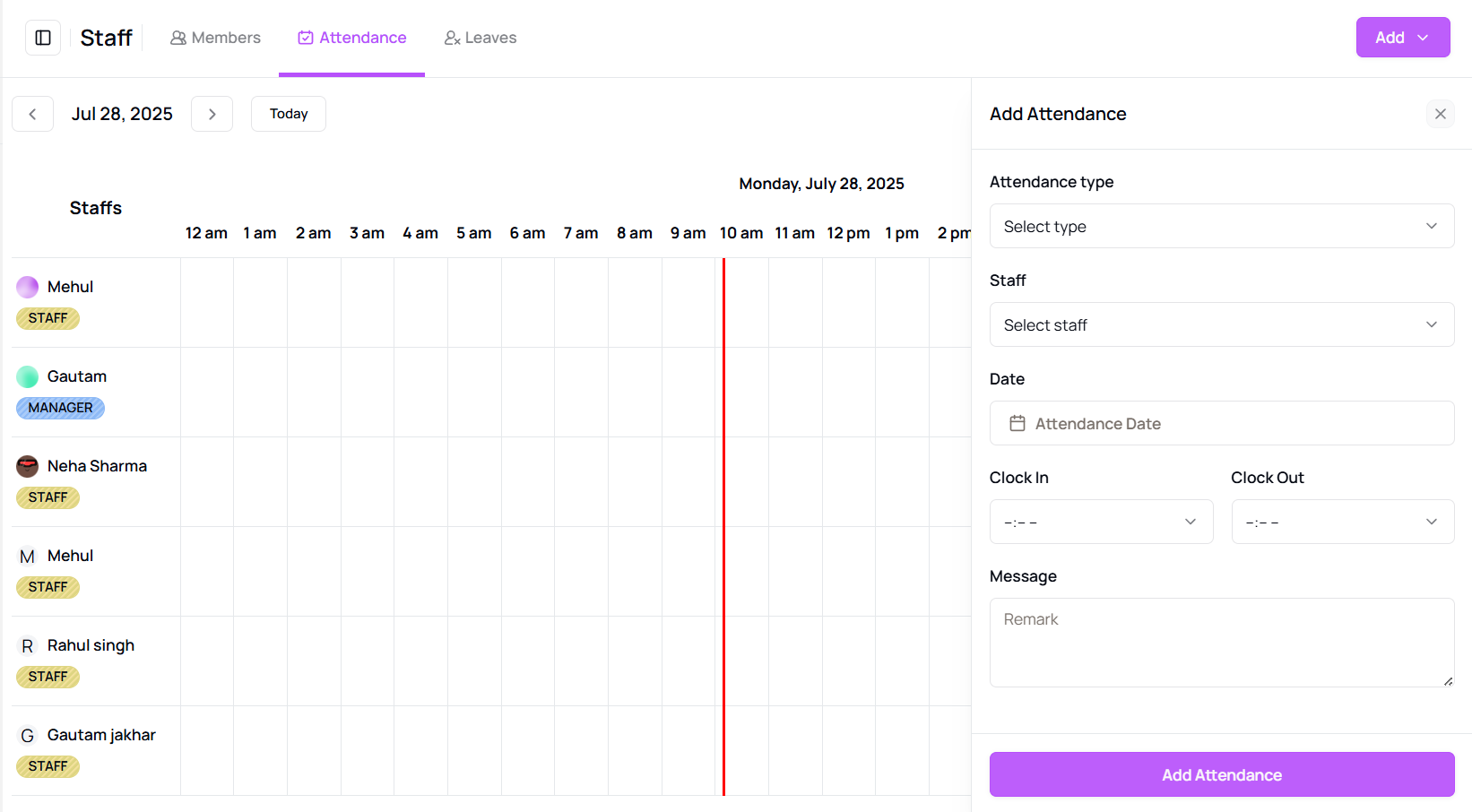
- A right-side panel will open where you must choose the Attendance Type: Present, Absent, or Half Day.
- Select the Staff Name, then choose the Date for the attendance entry.
- Enter Clock-in and Clock-out times, and optionally add Remarks.
- Click Add Attendance to save the entry.
Tip for First-Time Users:
Helps in tracking punctuality, managing payroll, and monitoring shift hours accurately.
More questions about this
Q1. Can I edit attendance after submitting?
Yes, go to the Attendance tab, find the entry, and use the edit option to make changes.
Q2. Can I mark attendance for multiple staff members at once?
Currently, attendance needs to be added one staff member at a time.