Delete Leave
Clean up incorrect or duplicate entries
Delete Leave
Purpose: Remove staff leave entries that are no longer valid or were added by mistake.
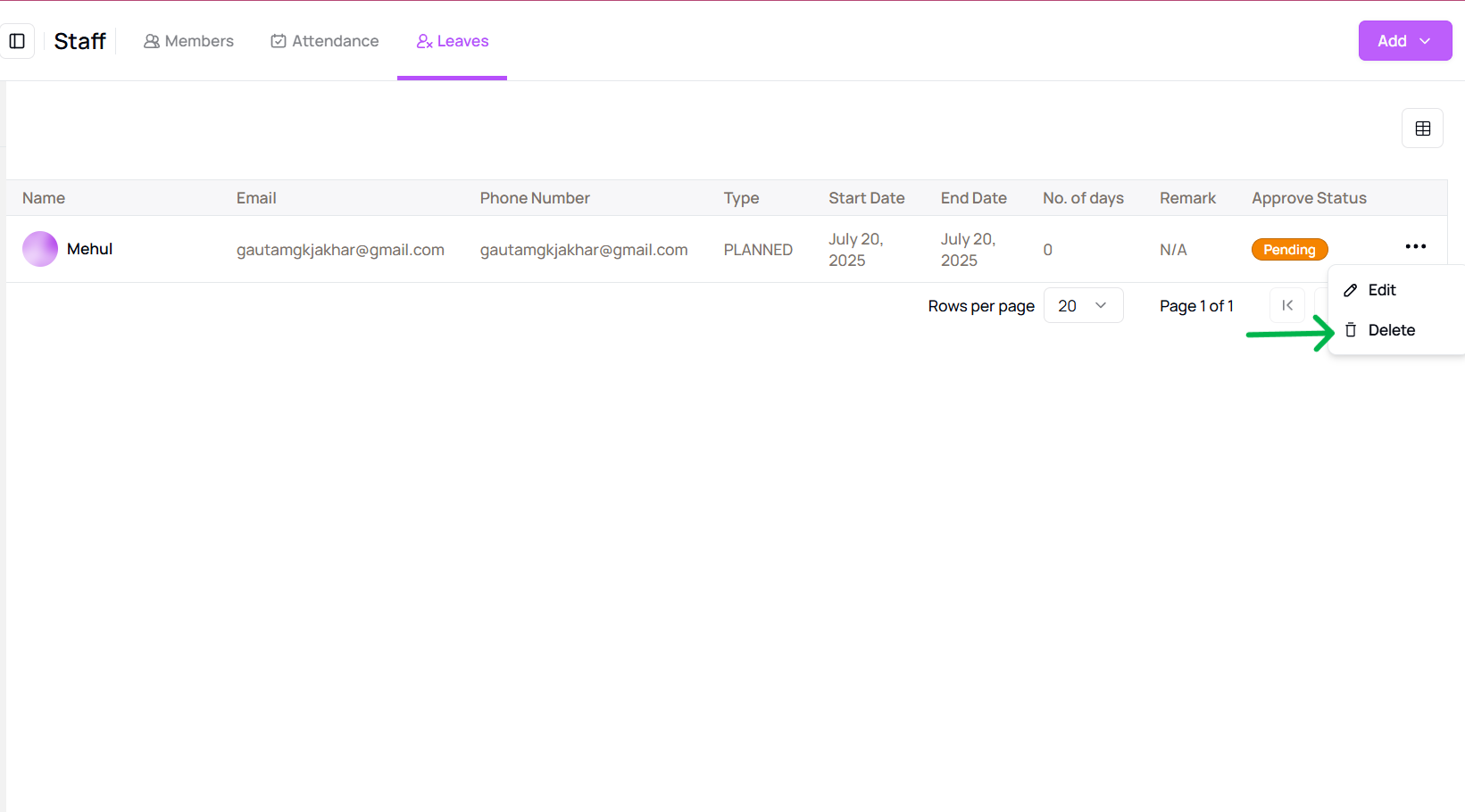
- In the “Leave” tab under the Staff section, find the record to be deleted.
- Click the three-dot menu on the row and select “Delete”.
- A confirmation popup will appear.
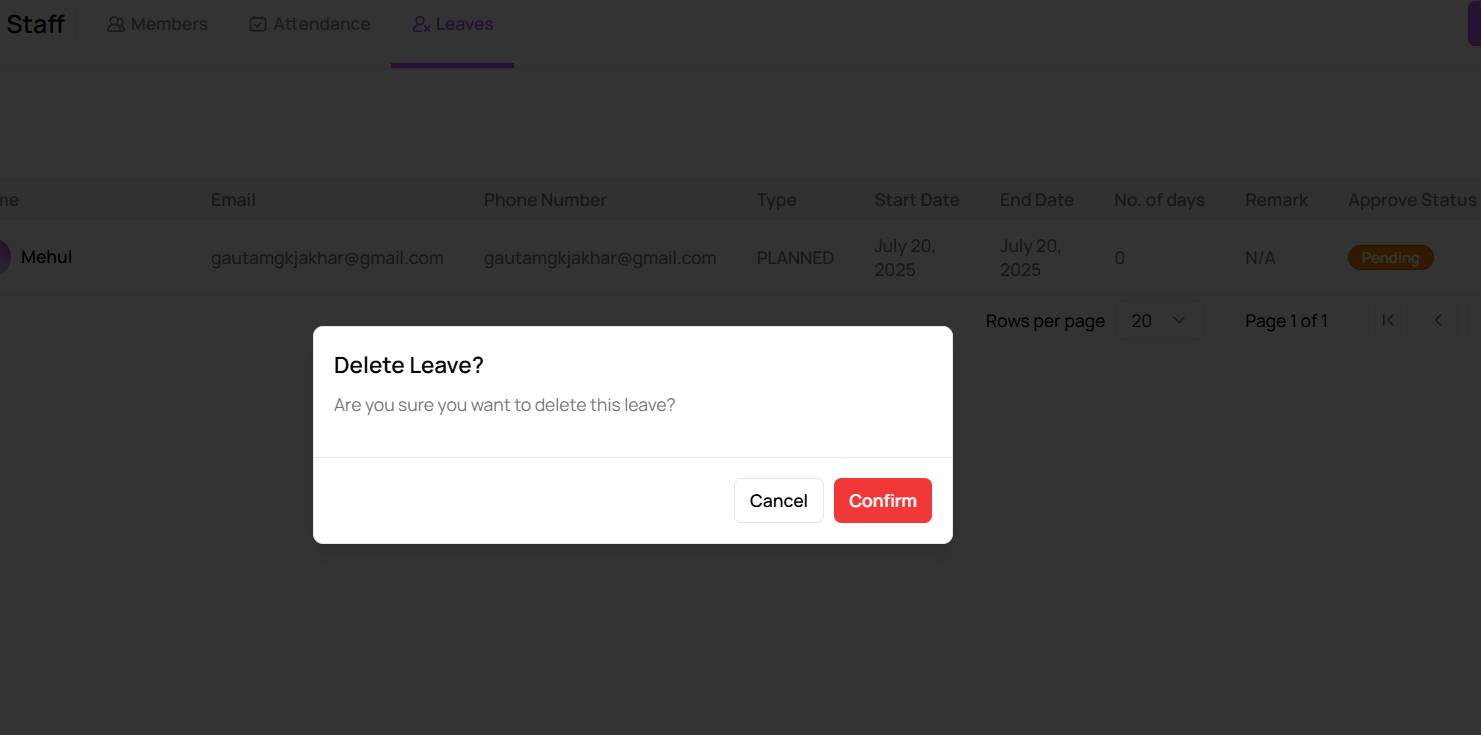
- Click “Confirm” to permanently delete the leave record, or “Cancel” to exit without deleting.
Tip for First-Time Users:
Deleting leaves helps maintain clean records and avoids scheduling conflicts.
More questions about this
Q1. Can I recover a deleted leave?
No, once deleted, the leave entry cannot be recovered.
Q2. Does deletion notify staff?
No, staff are not notified when their leave is deleted unless manually informed.