Add a Staff Member
- Keeps complete profiles for each team member. Easily assign responsibilities
Add Staff
Purpose: Add team members to your salon system and configure their commissions, schedules, and venue assignments.
- On the main dashboard, click on the “Staff” option located in the left-hand menu.
- Inside the Staff section, ensure you are in the “Members” tab (default tab).
- Click on the “Add Staff” button found in the top-right corner of the screen.
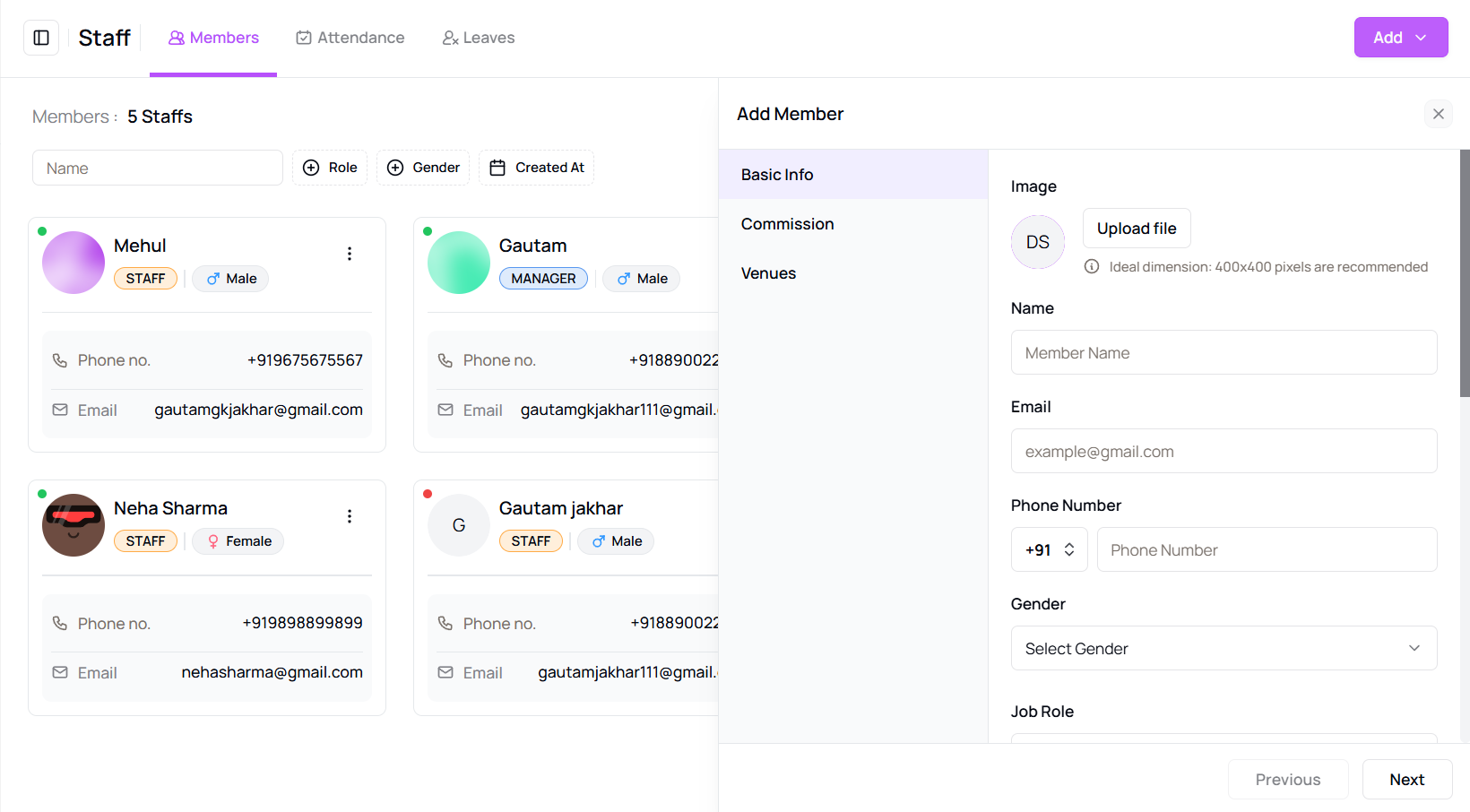
- A side panel will appear with a form. Begin by uploading an image for the staff member.
- Fill in all required basic information such as name, email, phone number, gender, job role, and specialization.
- Provide links to their Facebook and Instagram profiles if available.
- Add the address of the staff member.
- Click Next to proceed to the commission section.
- Set commission percentages for different categories: Service, Book-a-Look, Package, Voucher, Membership, and Product.
- Click Next to assign one or more venues where this staff member will work.
- After reviewing all the details, click on the “Save” button to create the staff profile.
Tip for First-Time Users:
Be sure to assign venues and commissions correctly to avoid staff visibility or payout issues.
More questions about this
Q1. Can I edit staff later?
Yes, go to the staff list, click ⋮ and choose Edit to update staff details anytime.
Q2. Are commissions mandatory?
No, you can leave them blank if commissions don’t apply to that staff member.