View Staff Details
Helps in performance reviews, salary calculations, and client assignment logic.
View Staff
Purpose: Easily access a staff member’s full profile including contact details, job roles, and assignments.
- Go to the “Staff” section from the main dashboard.
- To view a staff member’s full profile, click on their name directly in the list.
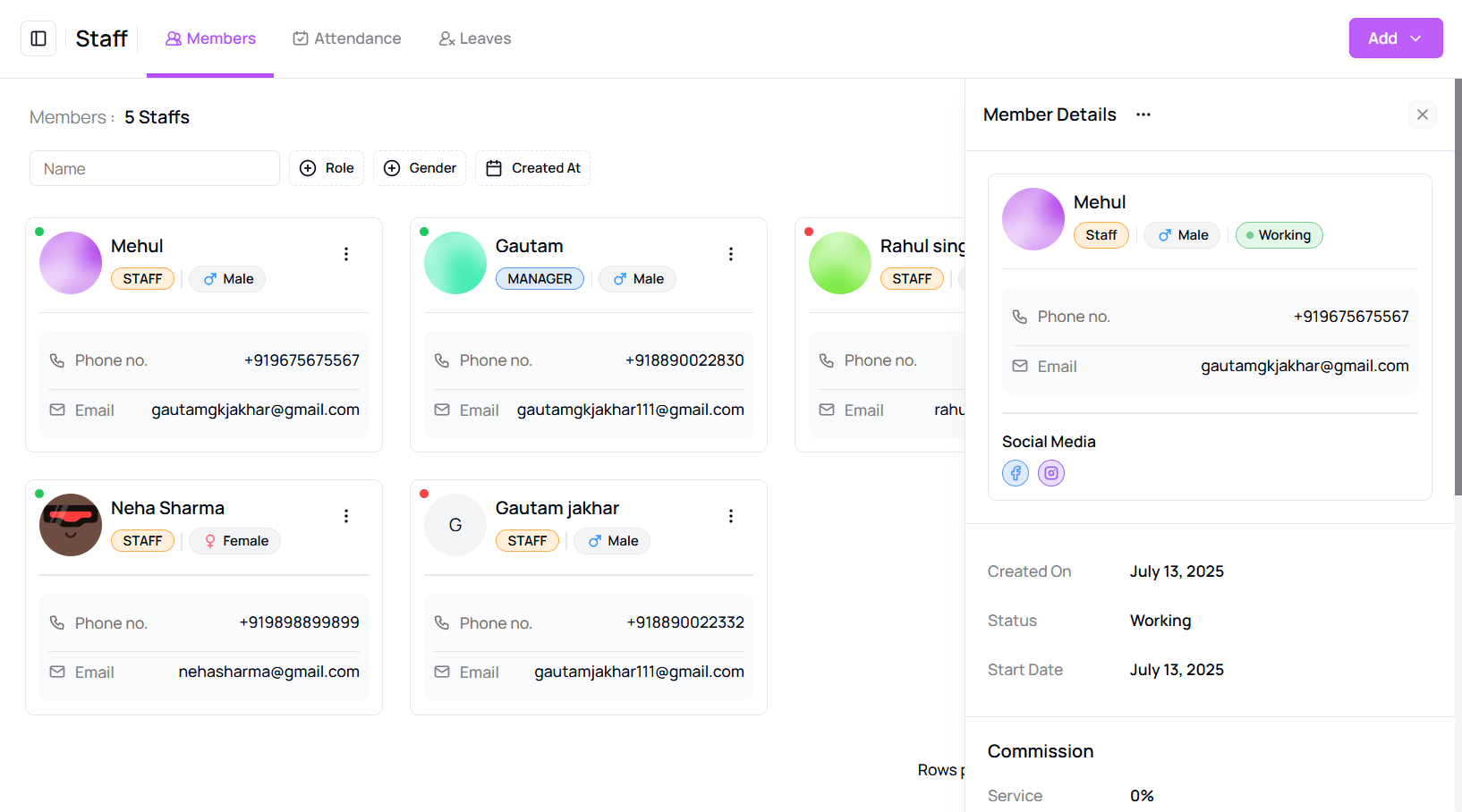
- Alternatively, use the “three-dot menu” next to the staff member’s row and choose “View”.
- A detailed profile panel will open displaying information such as contact details, job role, commissions, and assigned venues.
- Click the cancel/close icon at the top of the panel to exit the view.
Tip for First-Time Users:
Use this to quickly verify staff roles or commission setups before making edits or scheduling shifts.
More questions about this
Q1. Can I edit details from the view panel?
No, to edit a profile, you need to select the “Edit” option from the menu or profile view.
Q2. Will viewing a profile notify the staff?
No, viewing staff details is private and does not trigger any notification.