Edit Staff Details
Keep info accurate, update job roles, change commission strategy
Edit Staff
Purpose: Update staff profiles including contact details, commission settings, or venue assignments easily.
- Navigate to the “Staff” section from the left-hand menu of the main dashboard.
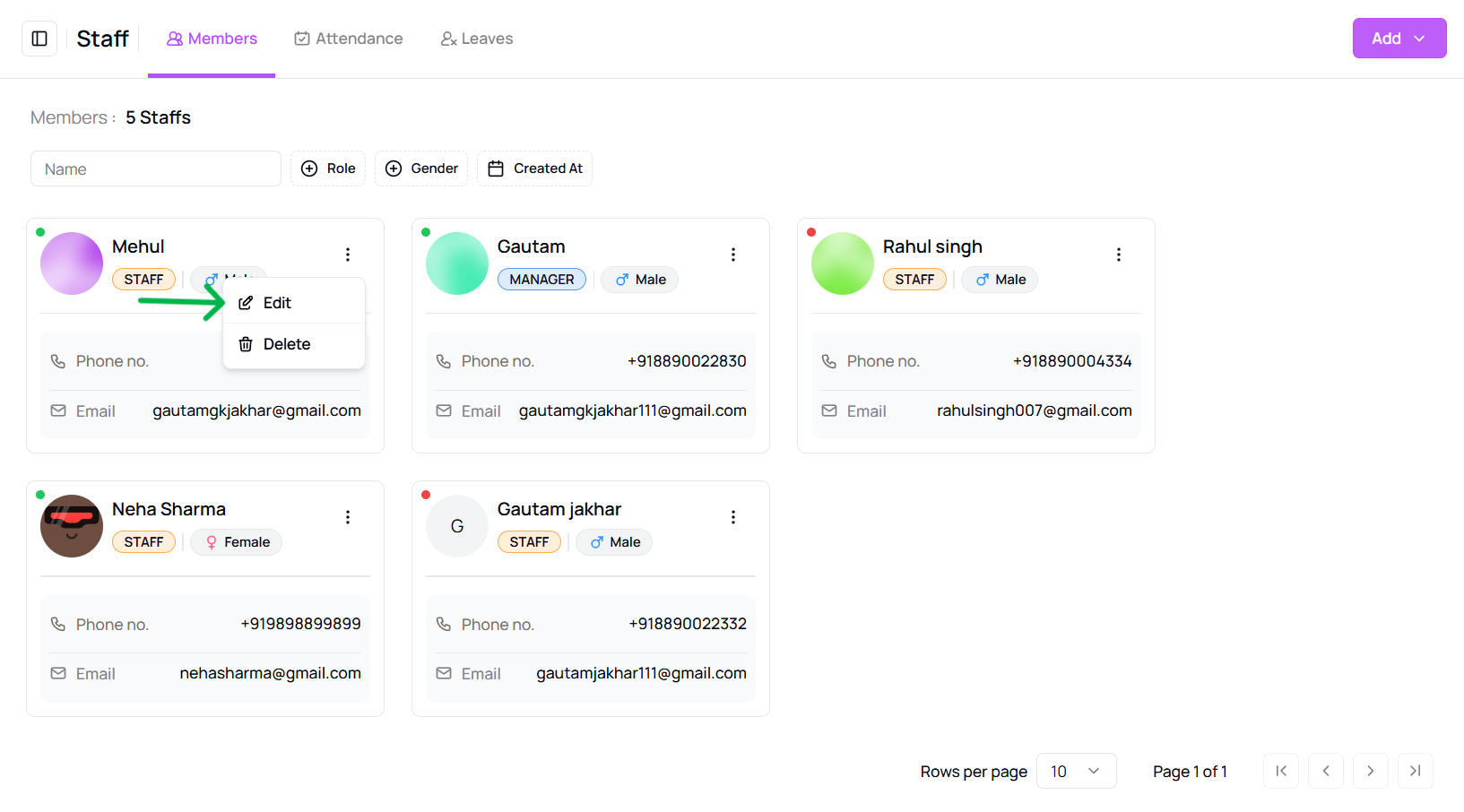
- To edit staff details, click on the “three-dot menu” at the end of any staff member’s row and select “Edit”.
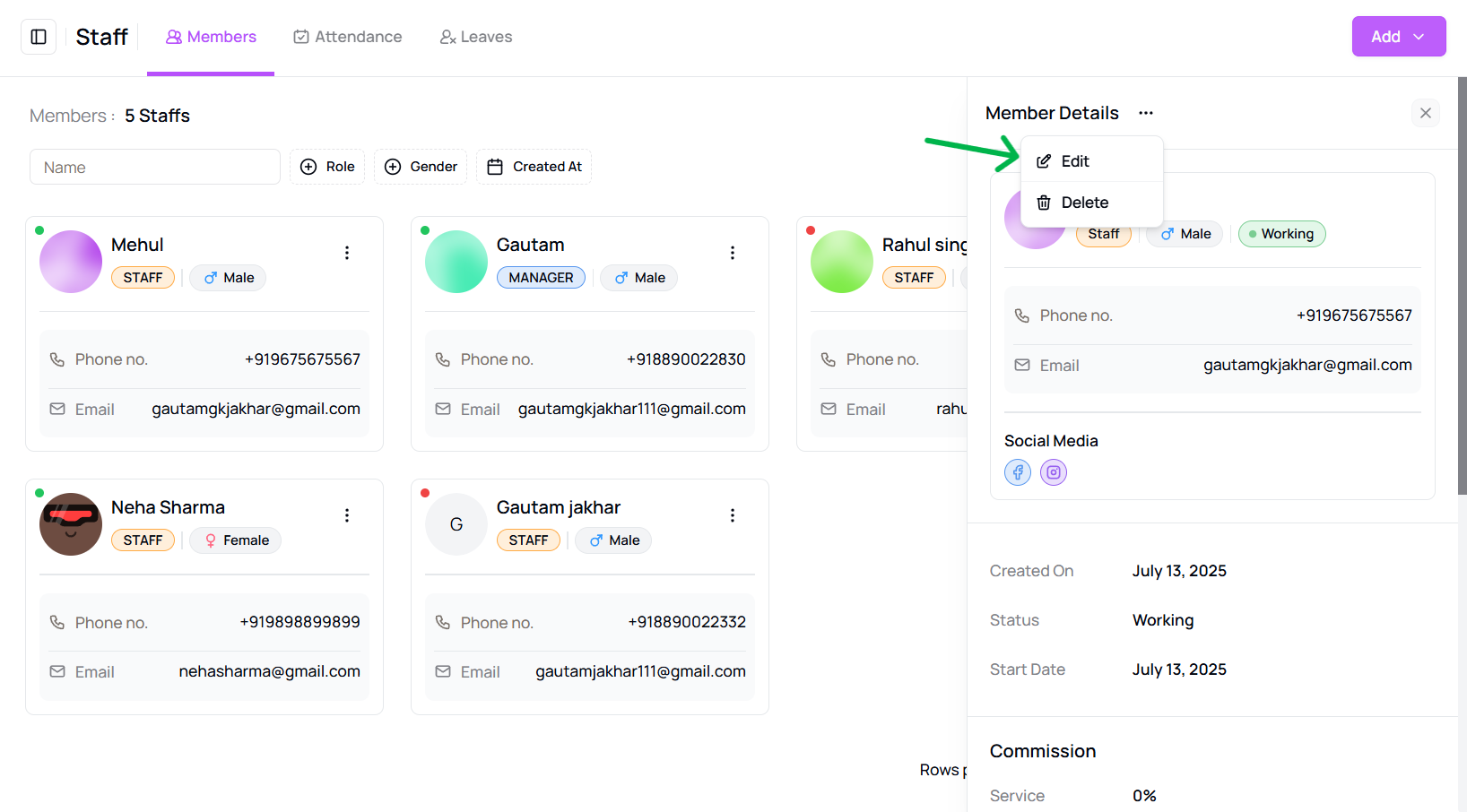
- Alternatively, click on the staff member’s name to open their profile, then click the “three-dot menu” in the top-right and choose “Edit”.
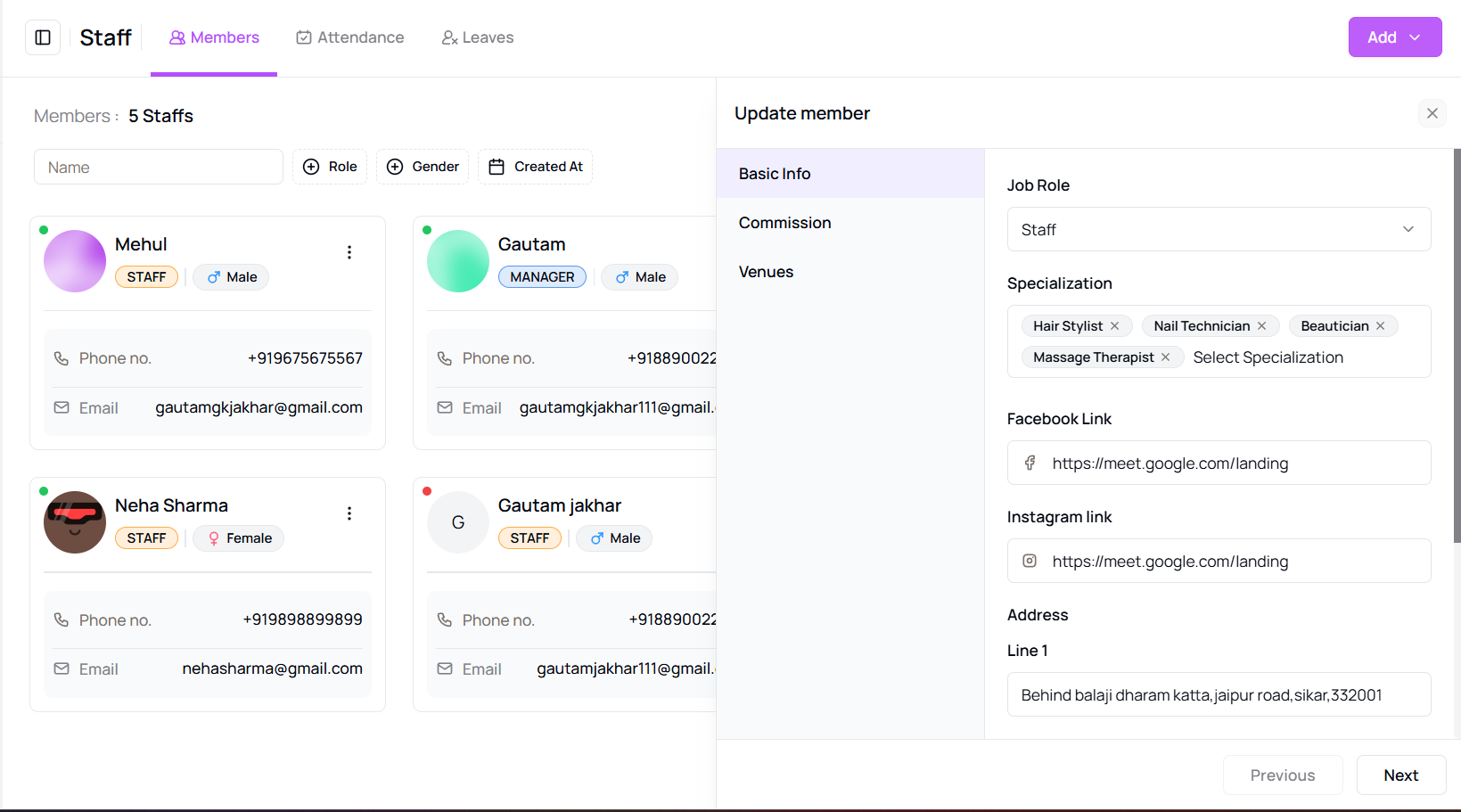
- An editable panel will appear where you can modify the basic information, commission structure, or assigned venues.
- After making the necessary changes, click “Save” to update the staff member’s details.
Tip for First-Time Users:
Use the individual staff panel for deeper customization or when making major role changes.
More questions about this
Q1. Can I delete a staff profile?
Yes, from the same menu where you edit, there's an option to delete a staff member permanently.
Q2. Will edited changes reflect immediately?
Yes, all updates are saved in real-time and reflect instantly across the platform.